Uncategorized

dedicated fibre internet geelong
Uncategorized

Dedicated Fibre Internet in Geelong

Byteway provides dedicated fibre internet in Geelong to a manufacturing base of more than 700 businesses that increasingly run on cloud-connected production systems, plus a growing agribusiness export sector moving product through the Port of Geelong on fixed shipping schedules. Both of these are exactly the kind of operation where a shared connection’s occasional slowdown stops being an inconvenience and starts being a production or shipment problem. Fibre Infrastructure in Geelong Isn’t Uniform Geelong’s newer growth corridors, particularly Armstrong Creek, generally have current-standard fibre infrastructure already in place, which shortens installation timelines for businesses relocating into newer commercial developments. Older industrial and port-adjacent precincts, where a meaningful share of Geelong’s manufacturing and logistics activity actually happens, are a different case, since these buildings often predate the infrastructure planning that came with the residential NBN rollout. Byteway checks the specific site before quoting a timeframe rather than assuming a suburb-wide standard applies. Who in Geelong Actually Needs Dedicated Fibre Manufacturers running cloud-based production monitoring, ERP systems, or supplier integrations depend on that connection staying up during every shift, not most of them. A shared business NBN connection introduces a contention risk that a production line reporting into a cloud dashboard shouldn’t have to absorb, and for operations at this scale, dedicated fibre’s guaranteed capacity is the more defensible investment even at a higher monthly cost. Agribusiness and export-facing companies working through the Port of Geelong run on customs systems, supplier portals, and trade documentation tied to fixed shipping windows. A connection that’s “usually reliable” isn’t the same as one backed by a penalty-carrying SLA, and when a shipment deadline is on the line, that difference matters in a way it doesn’t for a typical retail business. Geelong’s healthcare sector, anchored by Barwon Health, increasingly relies on telehealth and cloud-based patient systems that need the same uptime guarantee any compliance-conscious healthcare provider requires. Geelong is also absorbing a steady flow of businesses relocating from Melbourne for lower commercial rents, and many of these arrive already running cloud ERP, VoIP, and video conferencing at a scale their previous Melbourne office had outgrown business NBN for. For these businesses, matching the same dedicated fibre standard at the new Geelong site from day one avoids a step backwards in reliability during the move. Dedicated Fibre vs Business NBN for Geelong Businesses For manufacturers running real-time cloud systems and exporters working to shipping deadlines, dedicated fibre is generally the more sensible choice over standard business NBN, given what a connectivity gap could cost operationally. For smaller Geelong offices, retail, and professional services without heavy real-time data dependencies, business NBN with a genuine SLA covers the risk at a lower monthly cost. Local Understanding of Geelong’s Industrial and Growth Areas Byteway supports Geelong businesses with a practical understanding of the difference between Armstrong Creek’s newer infrastructure and the industrial precincts near the port, backed by managed IT, hosted VoIP, cyber security, and cloud backup delivered alongside the connection itself. Manufacturers and logistics clients frequently pair dedicated fibre with CCTV for remote monitoring of equipment and stock. Frequently Asked Questions We’re Byteway, and these are the questions Geelong businesses ask us most about dedicated fibre. What is the best dedicated fibre internet provider in Geelong for a manufacturer? The right fit depends on whether fibre infrastructure already reaches your specific site, industrial precincts near the port differ from newer developments like Armstrong Creek. We check this before quoting, then back the connection with a genuine SLA sized to your actual production requirements. Is dedicated fibre available in my Geelong suburb? It depends on the specific building rather than the suburb as a whole. Newer growth areas generally have infrastructure already in place; older industrial and established suburbs need checking site by site, which we do before quoting a timeframe. Dedicated fibre internet vs standard NBN fibre in Geelong, which is better? Dedicated fibre is a private, uncontended circuit; standard NBN, even fibre-based, still shares infrastructure with other premises. For manufacturers and exporters where an outage has real operational cost, dedicated fibre’s guaranteed capacity is the safer choice. Does dedicated fibre in Geelong come with an uptime guarantee? Yes. Our dedicated fibre plans include a documented SLA with defined restoration timeframes and service credits when we don’t meet them, which matters most for manufacturers and exporters working to fixed schedules. Can dedicated fibre support VoIP and unified communications for a growing Geelong business? Yes. Dedicated fibre’s symmetric speed handles high call volumes and video conferencing without the upload bottleneck that shared connections can introduce during busy periods, which we configure and support alongside the connection itself.

warehouse WiFi dead zones cause
Uncategorized

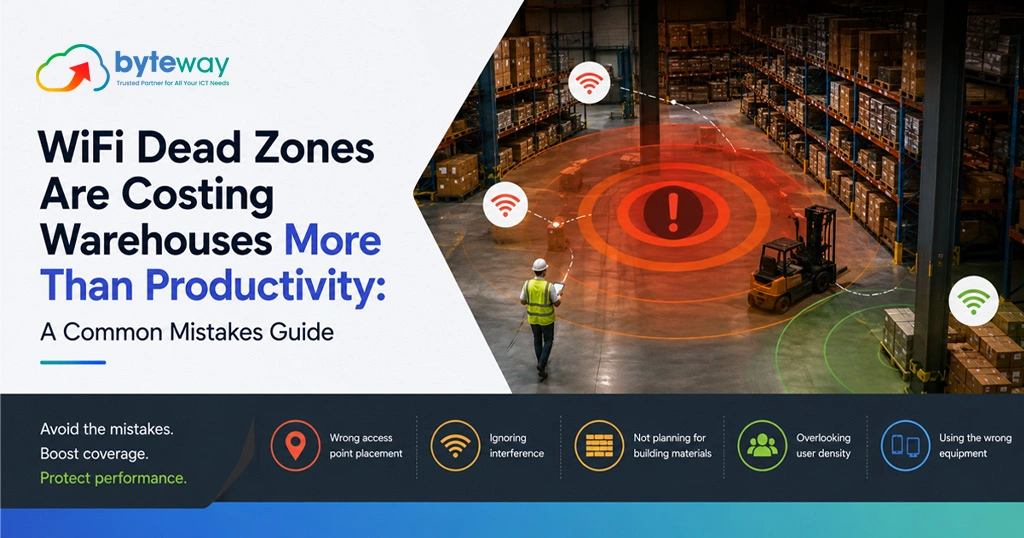
WiFi Dead Zones Are Costing Warehouses More Than Productivity: A Common Mistakes Guide

Byteway designs and manages business networks for Australian warehouses and logistics operators, and the problem we are asked to fix most is the dead zone, the aisle, mezzanine or cold room where the WiFi drops and the scanners stop working. Most operators know dead zones slow people down. Fewer realise how much else they cost: safety, inventory accuracy, security and staff retention all take a hit. This guide covers the common mistakes behind warehouse WiFi dead zones, what they really cost, and how to fix them properly. The short version, before the detail: warehouse WiFi dead zones are almost always caused by treating an industrial space like an office, too few access points, poor placement, consumer-grade gear, no site survey, and no allowance for racking and stock that block the signal and move constantly. The cost goes well beyond lost minutes, into mis-picks, safety gaps, security blind spots and the risky workarounds staff invent. Fixing it properly starts with a site survey and business-grade design, not another router from the electronics shop. Why warehouse WiFi is genuinely hard? A warehouse is close to the worst possible environment for wireless. It is large, tall, and full of metal racking, machinery and dense stock, all of which absorb, reflect and block WiFi signals. Worse, the layout changes: a clear aisle today is a wall of stacked pallets tomorrow, so coverage that worked last month has a dead zone this month. Add forklifts moving devices at speed across the floor, cold rooms with insulated walls, outdoor loading yards, and dozens of scanners and handhelds all competing for the network, and it becomes clear why office WiFi thinking fails here. Warehouse WiFi is a specialist job, and treating it as one is the whole difference. What dead zones really cost, beyond productivity? Lost productivity is the obvious cost, staff walking to find signal, scans failing, systems reloading. But the expensive costs are the ones operators miss: Inventory and picking accuracy. When a scanner drops connection, stock movements do not record, or record twice. That means inventory that does not match the system, mis-picks, wrong shipments, and the returns and re-work that follow. A dead zone quietly corrupts your data, and inaccurate inventory is expensive in ways that are hard to trace back to WiFi. Safety. In a dead zone, a worker cannot scan, cannot look up a hazardous-goods instruction, and in some setups cannot call for help. Connectivity gaps in areas with forklifts and heavy loads are a genuine safety issue, not just an efficiency one. Security blind spots. Warehouse CCTV, access control and sensors increasingly run over the network. A dead zone can mean a camera that drops out or an access point that fails, right where you least want a blind spot. Coverage and security are linked. Risky workarounds, and cyber risk. This is the one that bites later. When the WiFi is unreliable, staff improvise: personal phone hotspots, a cheap router someone brings in, devices moved onto whatever network works. Every one of those is an unmanaged, unsecured entry point into your systems. A dead zone does not just slow people down; it pushes them into behaviour that creates real cyber security risk. Staff frustration and turnover. Warehouse staff who fight the technology all day are less productive and less happy. Reliable tools are part of a workplace people stay in. Add these up and the dead zone costs a multiple of the lost minutes everyone focuses on. The common mistakes behind warehouse dead zones Mistake 1: Treating warehouse WiFi like office WiFi Office access points are designed for open-plan floors and low device density, not racking, height and industrial interference. Using an office approach, or office gear, in a warehouse is the root cause of most dead zones. The environments are not comparable. Mistake 2: Consumer-grade equipment A consumer router or a couple of home mesh units cannot cover an industrial space reliably. Warehouses need business-grade access points designed for coverage, density and roaming, properly powered and managed. Saving money on the hardware is how operators end up paying for it in mis-picks. Mistake 3: No site survey Guessing where to put access points, or spacing them evenly like an office, ignores how racking and stock block signal. A proper wireless site survey maps actual coverage in your actual layout, including the awkward spots, and is the single most important step. Skipping it is guessing, and guessing leaves dead zones. Mistake 4: Too few or poorly placed access points Warehouses usually need more access points than operators expect, placed for the real environment, high enough, angled right, accounting for aisles and obstructions. Too few, or badly positioned, and coverage collapses in exactly the busy zones that matter. Mistake 5: Ignoring racking and changing stock Signal that works over an empty rack fails when the rack is full, and full-height stock is a wall to WiFi. Coverage has to be designed for the warehouse full and busy, not empty, and re-checked when the layout changes significantly. Mistake 6: No roaming design As a forklift moves a device across the floor, it should hand off cleanly between access points without dropping. Poor roaming design means connections stall at every handover, which feels exactly like a dead zone even where coverage exists. This is a design detail consumer setups ignore. Mistake 7: Not planning for device density Dozens of scanners, tablets, printers and sensors all on the network at once is a very different load from an office. A network not designed for that density slows and drops under real conditions, even with decent coverage. Mistake 8: Forgetting the edges, yards and cold rooms Loading docks, outdoor yards, mezzanines and cold rooms are frequently left as afterthoughts, and become the worst dead zones, right where receiving and dispatch happen. Coverage has to include the whole operational footprint, not just the main floor. Mistake 9: Set and forget A warehouse WiFi network is not a one-time install. Layouts change, stock moves, the business

backup internet for business australia
Uncategorized

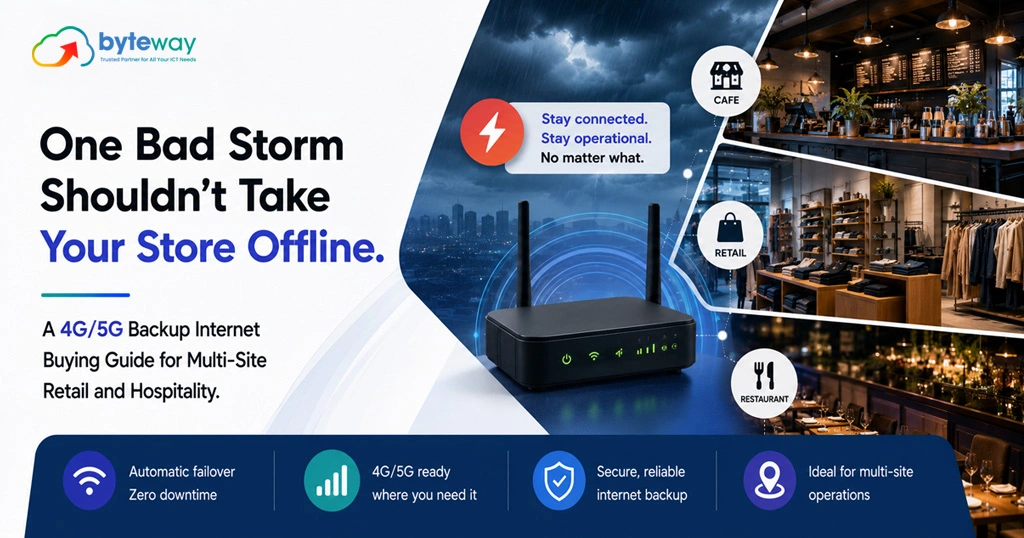
One Bad Storm Shouldn’t Take Your Store Offline: A 4G/5G Backup Internet Buying Guide for Multi-Site Retail and Hospitality

Byteway sets up connectivity for multi-site retail and hospitality businesses across Australia, and the call we dread on your behalf is the one that starts with “the internet’s down and we can’t take payments.” When a store or venue loses its connection, it does not slow down, it stops. EFTPOS declines, the POS freezes, online orders and bookings vanish. This guide walks through how to choose 4G or 5G backup internet so that one bad storm, one cut cable or one carrier outage never takes a site offline again. Here is the short version before the detail. Good 4G or 5G backup internet automatically takes over the moment your main connection drops, keeping payments, POS and bookings running without staff doing anything. When you choose it, the things that matter are automatic failover, enough data allowance, reliable signal, the right router, a carrier different from your primary line, the ability to prioritise payments on limited bandwidth, and consistent, centrally managed setups across every site. Get those right and an outage becomes a non-event your customers never notice. Why an outage is so expensive for retail and hospitality? For an office, an internet outage is annoying. For a store or venue, it is a closed door. Modern retail and hospitality run on the connection. Cloud-based POS, EFTPOS and card payments, online ordering, table and room bookings, loyalty apps, even the phones, all need internet. When it drops, staff cannot take payment, customers walk out, and the queue becomes a scene. In hospitality, a Friday-night outage during service is lost covers you never get back. In retail, an outage during a sale is revenue walking to the shop next door. Now multiply that by every site you run. A single store might lose its connection rarely. Across a network of sites, an outage somewhere, a storm, a cut cable, a carrier fault, a hardware failure, is close to a monthly certainty. Without backup, you are simply waiting for it to be your busiest site’s turn on your busiest day. What 4G/5G backup internet actually does? A 4G or 5G backup connection is a second path to the internet over the mobile network, sitting behind your main connection. When the primary link fails, a failover router automatically switches traffic to the mobile connection, usually within seconds, and switches back when the main line returns. Done well, staff never touch anything and often never notice. Payments keep processing, the POS stays live, and the outage becomes invisible to customers. The key phrase is “done well.” A cheap dongle someone plugs in during an outage is not backup; it is a scramble. Real backup is automatic, always-ready and tested. That is what this guide helps you buy. The buying guide: what to look for 1. Automatic failover, not manual This is non-negotiable. The connection must switch over on its own, instantly, without a staff member finding a device, plugging it in and reconnecting the POS. During a Saturday rush, nobody has time for that, and the whole point is that the outage is handled before anyone notices. Look for a proper failover router that monitors the primary link and cuts over automatically. 2. 4G or 5G: which you actually need 5G offers much higher speeds and is well suited to sites that need to run a lot during an outage, or as a strong backup where coverage is good. 4G is widely available, reliable, and often perfectly adequate to keep payments, POS and core systems running. The right choice depends on the site’s location, coverage and how much it needs to do on backup. Many sites run 4G today and move to 5G as coverage and needs grow. Note too that older 3G networks were switched off in Australia in late 2024, so any backup solution must be 4G or 5G capable. 3. Enough data allowance to survive an outage An outage can last hours. Your backup plan needs enough data to keep the site running for that long, more than people expect once you include POS, payments, and any cloud systems. Undersized data is a backup that fails partway through the emergency. Size the allowance for a realistic worst-case outage, not a five-minute blip. 4. Reliable signal, and the right antenna Mobile backup is only as good as its signal. A site with weak indoor coverage, common in shopping centres, basements and thick-walled venues, may need an external antenna to get a dependable connection. Signal should be checked per site, not assumed, because the backup that works at head office may be useless in the back corner of store number seven. 5. The right router and hardware The failover router is the heart of the setup. Business-grade dual-WAN or SD-WAN routers handle the switching cleanly, can prioritise critical traffic, and can be managed remotely. Consumer gear cannot. This is where cutting cost quietly undermines the whole solution. 6. A carrier different from your primary connection If your backup runs on the same network as your main connection, a carrier-level outage takes out both at once. Choosing a mobile carrier different from your primary internet provider gives you genuine redundancy, so a fault in one network does not down the other. This is one of the most overlooked details, and one of the most important. 7. Prioritise payments on limited bandwidth During an outage, backup bandwidth is precious. A good setup prioritises the traffic that matters, EFTPOS, POS, payments, over the traffic that does not, like guest wi-fi or background updates. That way the till keeps working even if the connection is running lean. Being able to shape traffic is what separates a backup that keeps you trading from one that crawls. 8. Consistency and central management across every site For a multi-site business, this is the difference between a solution and a headache. Every site should run the same, properly configured setup, and you should be able to monitor and manage them centrally, seeing which sites are online, which have failed over, and

signs your business server is failing
Uncategorized

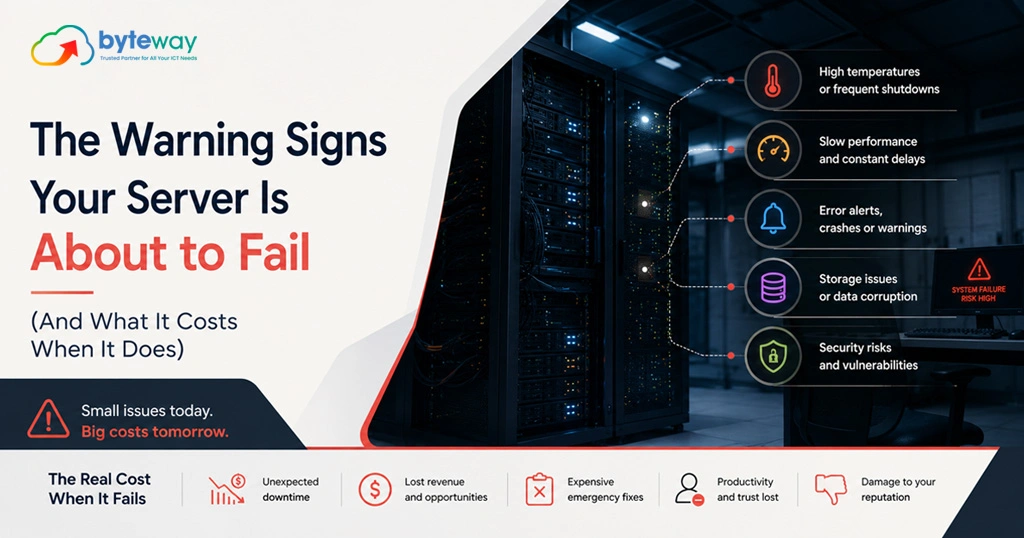
The Warning Signs Your Server Is About to Fail (And What It Costs When It Does)

Byteway keeps Australian businesses running by catching problems before they become outages, and the one we get called about most, usually too late, is a failing server. The frustrating part is that servers rarely die without warning. They give off signs for weeks or months, but the signs are easy to miss or explain away until the morning the machine does not turn back on. This guide covers the warning signs your server is failing, what a failure actually costs when it happens, and what to do the moment you notice them. The short version, so you have it up front: a server that is about to fail usually shows it through unusual noises, slowdowns, unexpected reboots, disk or RAID errors, failed backups, or simply running old, out-of-support software. When it does fail, the cost is rarely just a new box. It is the downtime, the lost productivity and revenue, the possible data loss, the emergency recovery, and the hit to customer trust, and it almost always lands at the worst possible moment. Spotting the signs early turns an expensive emergency into a planned, affordable fix. The warning signs your server is failing Some of these are loud and obvious. The dangerous ones are quiet. Strange noises and heat. Clicking or grinding from a hard drive is a classic sign of imminent drive failure. Fans running constantly loud, or a server that is hot to the touch, points to cooling or hardware stress. Hardware that is working hard to stay alive is telling you something. Slowdowns and freezing. A server that has become noticeably slower, hangs, or freezes under normal load is often struggling with failing hardware, a full disk, or ageing components. Staff saying “the system’s slow again” is not always a network gripe; sometimes it is the server asking for help. Unexpected reboots and crashes. A server that restarts on its own, crashes, or throws blue-screen errors is unstable. Random reboots are one of the clearest signs that something is failing, and they tend to get more frequent before the end. Disk errors and degraded RAID. SMART warnings, disk read/write errors, or a RAID array reporting as degraded are direct warnings that storage is failing. RAID can keep you running with a failed drive, but a degraded array is running without its safety net, and the second failure is the one that loses the data. Failed or failing backups. If backups are failing, taking longer, or throwing errors, treat it as urgent on two counts: the server may be struggling, and your safety net is fraying at exactly the wrong time. A failing server with unreliable backups is the worst combination there is, which is why tested backups matter so much. Running out of storage. A server near full is a server about to cause problems, from crashes to corrupted data. Persistent capacity warnings are a sign the system has outgrown its hardware. Event log errors. Recurring warnings and errors in the system logs are the server documenting its own decline. Most businesses never look, which is how the signs go unnoticed until failure. Out-of-support software, the silent sign. This one shows no symptoms at all, and it is the most under-rated. A server running an operating system or database past its support date stops receiving security patches, which turns a reliability question into a security one. SQL Server 2016 has passed the end of its support. Windows Server 2012 and 2012 R2 are at the end of their paid extended security updates. Windows Server 2016 reaches the end of its extended support in January 2027. If your server runs any of these, it is already flashing a warning, quietly. We cover the move off them in our on-premise server migration checklist. Age. Most business servers are built to run reliably for around five years. Past that, and especially out of warranty, failure risk climbs steadily. An old server that “still works” is running on borrowed time, and the interest is compounding. What it costs when a server fails? Businesses tend to picture the cost of a server failure as the price of a replacement. That is the smallest part. Here is where the real cost sits, and you can estimate your own. Downtime: lost productivity and revenue. When the server goes down, so does whatever runs on it, file shares, the line-of-business app, email, the systems your team needs to work. Estimate it simply: take the number of staff who cannot work, multiply by their hourly cost, multiply by the hours of downtime. Add any revenue you cannot earn while systems are down. For a business of any size, a day of downtime runs well into the thousands before you have replaced a single component. These figures are illustrative; the point is that the productivity and revenue loss dwarfs the hardware. Data loss. If the failure takes data with it and the backups were among the things failing, the cost is far higher, sometimes existential. Lost financial records, customer data or work-in-progress may be unrecoverable, and for regulated businesses a data loss can also be a compliance event. Emergency recovery. Failing on an ordinary Tuesday means paying emergency rates: urgent hardware, after-hours labour, rebuilding and reconfiguring under pressure, and the overtime to catch up on everything that stopped. Emergency recovery always costs more than planned work. Reputation and customers. A business that cannot operate, cannot quote, cannot invoice, cannot answer, loses more than a day. Customers who could not be served remember it, and some do not come back. The timing tax. Servers do not fail at convenient moments. They fail at month-end, mid-project, on the busiest day, because those are the days the hardware is under the most load. The cost is always worse than it would have been on a quiet week, which is exactly when a planned replacement would have happened. Put together, the cost of a failure is a large multiple of the cost of getting ahead of it. That gap is

Migration Checklist
Uncategorized

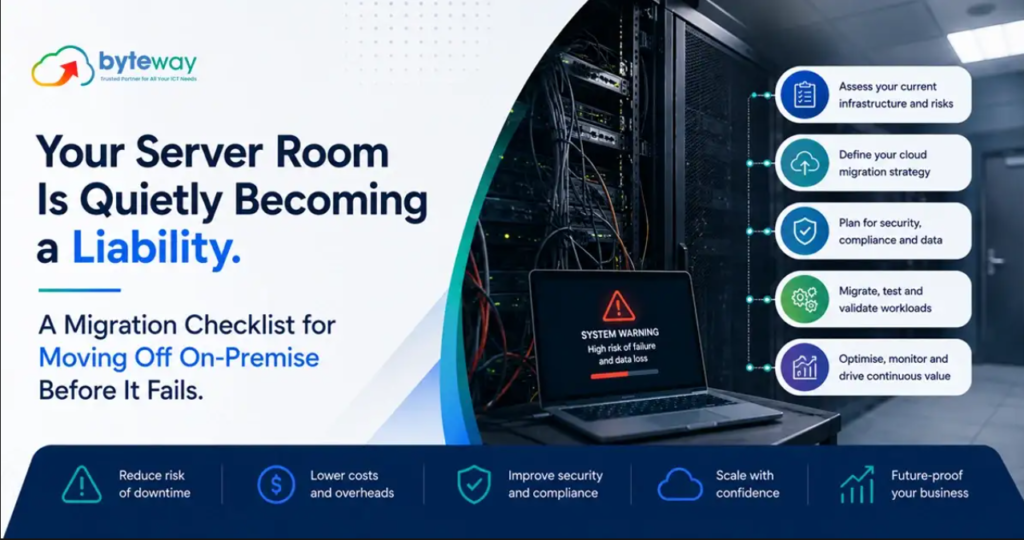
Your Server Room Is Quietly Becoming a Liability. A Migration Checklist for Moving Off On-Premise Before It Fails.

Byteway handles server migrations and on-premise to cloud moves for Australian businesses, and the pattern we see most is a business running critical operations on a server that is quietly past its safe life. It still boots, so nobody touches it. That is exactly the problem. An ageing on-premise server is a liability that gives no warning until the day it fails, or the day its software stops receiving security updates. This guide explains why, covers the 2026 and 2027 deadlines that make it urgent, and gives you a practical migration checklist for moving off safely. The short version, before the detail: an on-premise server becomes a liability through ageing hardware that will eventually fail, software that reaches end of support and stops receiving security patches, rising running costs, and being a single point of failure with no easy recovery. Moving off, to the cloud or modern managed infrastructure, removes those risks, but only if the migration is planned properly. Rushing it after a failure is how businesses lose data and days of trading. Why an on-premise server becomes a liability? The server in the cupboard rarely announces its decline. It just accumulates risk quietly: Hardware fails, without warning. Physical servers have a finite life. Drives, power supplies and components degrade, and when a server dies suddenly, the business can stop, sometimes for days, while data is recovered and hardware is replaced. The older the server, the higher the odds, and the harder replacement parts are to find. Software reaches end of support. This is the deadline most businesses miss. When Microsoft ends support for a server operating system or database, it stops issuing security patches. The server keeps running, which is the trap, but every new vulnerability discovered after that date stays open forever. An unsupported server is an unlocked door that attackers actively scan for. Running costs quietly climb. Ageing servers draw power, need maintenance, require specialist attention when they misbehave, and often force you to keep other software old to stay compatible. The total cost of keeping an old server alive frequently exceeds the cost of moving off it. It is a single point of failure. If your operations depend on one physical box in one room, then one fire, flood, theft, power event or hardware failure can take the whole business offline. On-premise servers without robust, tested backups and recovery are a serious continuity risk. The 2026 and 2027 deadlines making this urgent If your server runs older Microsoft software, the timing is not hypothetical. Several widely used versions have reached, or are about to reach, end of support: A business running Windows Server 2016 with SQL Server 2016 on it, a very common combination, is under pressure from two deadlines at once. Large migrations take months to plan and test properly, so the businesses that handle this well start well before the deadline, not in the panic of the final weeks. (Confirm exact dates for your specific versions against Microsoft’s official lifecycle pages, as programs like Extended Security Updates can change.) If you are searching “Windows Server 2016 end of life” or “SQL Server 2016 end of support,” that instinct is right, and the practical answer is to plan your migration now rather than buy time with paid updates that only delay the inevitable. On-premise, cloud, or hybrid: what moving off actually means Moving off an ageing server does not have to mean one specific destination. The realistic options: The right destination depends on your applications, your data, your connectivity and your budget. The wrong move is staying on failing hardware and unsupported software because deciding felt hard. The migration checklist: moving off on-premise safely A server migration done well is uneventful. Done badly, or in a rush after a failure, it loses data and trading days. Work through these stages: 1. Inventory everything. List every server, what runs on it (file shares, databases, line-of-business applications, email, directory services), and who depends on each. You cannot migrate safely what you have not mapped. 2. Check software support status. For each system, find its end-of-support date. Anything already unsupported, or expiring within your planning horizon, moves to the top of the list. 3. Assess and choose the destination. Decide, per workload, whether it moves to the cloud, to a modern managed server, or stays in a hybrid setup. Consider application compatibility, licensing, connectivity and cost. 4. Confirm your internet can support it. Cloud migration shifts load onto your connection. If you are moving off local servers, reliable business internet matters more than ever, and this is a good moment to check it. 5. Back up everything, and verify the backup. Before you move anything, ensure you have a complete, tested backup you have actually restored. This is your safety net if the migration hits trouble. 6. Build and test in staging. Stand up the destination, move a copy of the data and applications, and test thoroughly before touching production. Confirm the applications work, the data is intact, and users can do their jobs. 7. Plan the cutover with a rollback. Schedule the switch for minimal disruption, ideally out of hours, and keep the old system available as a fallback until the new one is proven. Never burn the bridge before you have crossed it. 8. Cut over, then run in parallel briefly. Make the switch, then run both briefly so any issues surface while you can still fall back. 9. Validate, then decommission. Confirm everything works, security is configured, backups are running on the new environment, and only then retire the old server, securely wiping its data. 10. Secure the new environment. A migration is the ideal moment to get security right: multi-factor authentication, access control, monitoring and proper cyber security on the new setup, rather than carrying old weaknesses across. Byteway Expert Insight The migrations that go wrong are almost always the ones forced by a failure rather than chosen on a plan. A server dies on a Tuesday, and suddenly a business is

CCTV with AI Detection
Uncategorized

CCTV with AI Detection: What It Actually Does (And What’s Still Marketing Hype)

“AI-powered” is stamped on almost every security camera box right now. Some of it is a real upgrade. Some of it is a sticker on the same camera you could buy three years ago. If you are spending money on cameras for your business, you deserve to know which is which. So here is the honest version, without the sales gloss. AI CCTV genuinely does a few things well: it tells people apart from animals and vehicles, cuts false alarms, reads number plates, and lets you search footage fast. What is oversold is reliable facial recognition, “predictive” crime claims, and the idea that AI replaces monitoring. For most Australian businesses, the real value is fewer false alerts and faster searching, not sci-fi. Buy for those, and you will get your money’s worth. What does AI actually do in a CCTV camera? Older cameras trigger an alert on any movement. A cat, a shadow, a tree in the wind, a plastic bag: all of it sets them off. AI changes that by working out what it is looking at. Here is what current AI detection does reliably: None of this is science fiction. It is pattern recognition doing a genuinely useful job, and it saves real time. AI CCTV vs traditional CCTV: what is the real difference? The cameras can look identical. The difference is in the analysis. Feature Traditional CCTV AI CCTV Motion alerts Any movement People, vehicles, defined events False alarms Frequent Far fewer Searching footage Manual scrubbing Search by object or attribute Number plate reading No Yes (ANPR) Restricted-zone alerts Basic Smart, object-aware Cost Lower Higher What is oversold: the hype to watch for? Now the honest part. A few claims get stretched well past what the technology delivers. The biggest is facial recognition. Marketing implies your cameras will reliably identify individuals by face. In practice, accurate facial recognition needs good lighting, a clear front-on view, and a quality database, and it degrades fast with angle, distance and low light. For most business sites, it is unreliable in the real world, and it also carries heavy privacy obligations under Australian law. Treat “facial recognition” claims with caution. The second is “predictive” or “crime-prevention AI.” Cameras detect and alert. They do not predict crime. Any claim that a camera will foresee an incident is marketing. The third is “AI means you do not need monitoring.” AI reduces noise and flags events. Someone or something still has to respond. It is a better filter, not a replacement for a response plan. Which AI features are genuinely worth paying for? If you are buying for a business, these are the features that repay the extra cost: Does AI CCTV work well in Australian conditions? It can, but placement and hardware matter more than the AI badge. Harsh sun, glare, heat and rain all affect performance, so outdoor sites need cameras rated for the conditions, mounted to avoid backlight, and set up with the detection zones tuned to the site. A cheap “AI” camera pointed into the afternoon sun will miss things no matter what the box promises. This is where setup beats specs. The same camera can be excellent or useless depending on where it is placed and how the detection is configured. What about privacy? The part the marketing skips AI features that identify people or vehicles collect more personal information than a basic camera, which raises your obligations under Australian privacy and surveillance law. Facial recognition and number-plate data are sensitive, and using them without the right notice, purpose and storage can put you offside. Before you switch on face or plate recognition, it is worth understanding the CCTV privacy rules that apply in Australia, especially around consent, signage, and secure storage of footage. AI does not remove those obligations. It increases them. How to choose AI CCTV without falling for the hype? Byteway Expert Insight When businesses around Melbourne ask us about AI cameras, the request usually starts with a feature they saw advertised, and it is almost always facial recognition. Once we walk through their actual site, the sun angles, the mounting heights, the lighting, the honest answer is nearly always the same: the feature that will change their day-to-day is not face recognition. It is person and vehicle detection cutting their false alarms from dozens a night to a handful that actually matter. What we have learned is that AI CCTV is genuinely useful, just not for the reasons the box advertises. The value is in a quieter, smarter system: fewer pointless alerts, footage you can search in minutes, and a real notification when a person is somewhere they should not be. Set up around the site rather than the spec sheet, that is worth paying for. Sold on facial recognition it cannot reliably deliver, it is not. Is Byteway a good choice for AI CCTV in Australia? Yes, for Australian businesses that want AI cameras chosen for what they actually do, not what the box claims. Byteway specs and installs AI CCTV around your site: person and vehicle detection, smart search, ANPR where it helps, and real-time alerts, set up for Australian conditions and configured with privacy in mind. Local installation and support mean the system performs, not just the marketing. Where Byteway is different: A hardware reseller sells you the camera with the best sticker. The value is in choosing and setting up the system that actually protects your site. Get honest advice before you buy The best way to judge AI CCTV is against your actual site, not a spec sheet. Which features will help, which are hype, and how to set it up so it performs and stays on the right side of privacy law. Book a free CCTV site assessment. We will look at your premises, tell you which AI features are genuinely worth it for you, and design a system that performs in Australian conditions. 👉 Get your free CCTV site assessment Frequently Asked Questions What does AI actually

dedicated fibre internet adelaide
Uncategorized

Dedicated Fibre Internet in Adelaide

Byteway provides dedicated fibre internet in Adelaide to a city building Australia’s future submarine fleet a short drive from its CBD. The SSN-AUKUS program at Techport, just outside the city at Osborne, operates under security and continuity requirements that make a shared connection close to unworkable, and it sits alongside the largest health and medical research precinct in the Southern Hemisphere and a growing space industry headquartered at Lot Fourteen. Few cities this size have this much security-conscious, data-intensive industry concentrated in one metro area. Adelaide’s Fibre Infrastructure Reflects a City of Precincts The CBD and innovation precincts like Tonsley and Lot Fourteen generally have current fibre infrastructure already in place, built for the research and technology tenants these zones were designed to attract. The Techport and Osborne shipbuilding precinct north of the city is a different case, a working defence industrial zone with its own infrastructure requirements, and Byteway checks the specific site before quoting an installation timeframe rather than assuming CBD-level provisioning extends to a shipyard. Who in Adelaide Actually Needs Dedicated Fibre? Defence contractors and suppliers working on or around the AUKUS submarine program operate under strict security and continuity obligations, and for this kind of work, dedicated fibre paired with business-grade security is generally the appropriate baseline rather than a shared business NBN connection. Adelaide’s health and medical research sector, centred on SAHMRI and the wider BioMed City precinct, regularly moves large research datasets and relies on cloud storage and backup systems that need consistent, guaranteed upload capacity rather than a connection that’s merely usually reliable. The city’s growing space industry and emerging hydrogen and critical minerals businesses both depend on data-heavy collaborative work with international and interstate partners, exactly where symmetric upload performance matters most. Growing Adelaide businesses moving beyond a single office increasingly need a connection that scales without a disruptive re-fit every time headcount grows. Dedicated Fibre vs Business NBN for Adelaide Businesses For defence contractors around Techport and Osborne, and for health and research organisations moving large datasets or facing compliance-critical uptime requirements, dedicated fibre is worth the added cost. For most Adelaide CBD offices and smaller professional services firms, business NBN with a genuine SLA covers the exposure at a lower price. National Support, Not a Call Centre Script Byteway supports Adelaide businesses with managed IT, hosted VoIP phone systems, cyber security, and cloud backup delivered alongside the connection. Defence and research-adjacent clients in particular often add cyber security hardening given the compliance environment they work within. Frequently Asked Questions We’re Byteway, and these are the questions Adelaide businesses ask us most about dedicated fibre. Dedicated fibre internet vs business NBN in Adelaide, which is faster? Dedicated fibre, consistently, since it’s a private circuit with no contention from other premises. Business NBN’s speed can vary during peak periods on shared infrastructure, which matters for defence contractors and research organisations working to fixed deadlines. How does Byteway Dedicated Fibre Internet compare to TPG in Adelaide? TPG and similar providers sell connectivity on its own. We bundle dedicated fibre with managed IT, phone systems, and cyber security under one team, so a fault touching more than one system gets resolved with a single call. Can I get dedicated fibre internet in Adelaide with business-grade SLAs? Yes. Byteway’s dedicated fibre plans in Adelaide include a documented SLA with defined fault restoration timeframes and service credits when we don’t meet them, which matters most for defence and health research organisations. Which dedicated fibre internet providers in Adelaide offer installation within a week? Installation timeframes depend on whether fibre infrastructure already reaches your specific building. In well-serviced CBD and innovation precincts, installation can be relatively fast; sites requiring new infrastructure take longer, which we assess before quoting. Best dedicated fibre internet in Adelaide for heavy cloud storage and backups: what should I look for? Symmetric upload speed and guaranteed, uncontended capacity, since backup and large data transfer jobs depend on consistent upload performance rather than a fast download number. Our dedicated fibre plans are sized to actual data volume, not a generic small-business default.

Digital Signage Network Security Why Your Screens Could Be a Backdoor Into Your Business
Uncategorized

Digital Signage Network Security: Why Your Screens Could Be a Backdoor Into Your Business

That screen showing your menu, your promotions or your welcome message is doing more than displaying content. It is a networked computer sitting on your business network, connected to the internet, often running an operating system that rarely gets updated. If nobody secured it properly, it is a door. And most businesses never think to lock it. Here is the risk in plain terms, and what to do about it. A digital sign is a networked device, so an unsecured screen can be an entry point for an attacker to reach the rest of your network. The risk comes from default passwords, missing updates, and screens sitting on the same network as your important systems. The fix is straightforward: change defaults, keep them updated, and put signage on a separate network segment away from your core data. Let me explain why a screen is a security problem, and how to close the gap. How can a digital sign be a security risk? A digital signage screen is not just a display. Behind it sits a media player or a smart screen running software, connected to your network and usually to the internet so you can update content remotely. That connection is the point of the whole system. It is also the weakness. Attackers look for the weakest device on a network, because once they are on one device, they can often move to others. Signage is frequently the weakest link for a few reasons: The screen showing your lunch specials should not be able to reach the server holding your customer records. On a lot of networks, it can. What actually goes wrong with unsecured signage? Three failures come up most often, and they compound. The first is the default password. Screens and media players ship with a generic login, and it stays that way. Anyone who knows the default, and those lists are public, can get in. The second is missing updates. Signage software and the operating system underneath it need patching like any computer. Because updating a wall of screens is a hassle, it often never happens, leaving known vulnerabilities open for years. The third is a flat network. When signage sits on the same network as your point-of-sale, your accounts system and your customer data, a compromised screen becomes a path to all of it. This is the one that turns a minor device into a serious breach. How do you secure digital signage properly? The good news is that securing signage uses the same fundamentals as any device. None of it is exotic. Network segmentation: the step that matters most If you do only one thing, do this. Network segmentation means splitting your network so that different types of device live in separate zones that cannot freely reach each other. Put your screens in their own zone. Then, even if a screen is compromised, the attacker is stuck in the signage zone with nothing valuable to reach. Your customer data, payment systems and servers sit in a different zone, walled off. It is the difference between losing a screen and losing your business data. This is standard network security practice, and it applies to all your connected devices, not just signage. It is the same principle behind securing smart devices and IoT generally: keep the low-trust devices away from the high-value systems. Why signage security is a network problem, not a screen problem? Here is the part a signage-only vendor cannot help you with. Securing your screens is not about the screens. It is about your network. The company that sold you the displays knows content management. They do not manage your firewall, your network segments, your access controls or your patching. So when it comes to the actual security work, keeping the screens off your sensitive network and locked down, they are not the right people, and often not equipped to help at all. This is why signage security sits with whoever runs your network and IT, not with a screen supplier. The two need to be joined up. When they are separate vendors, the screens get installed for good pictures, and the security falls in the gap between them. Does this apply to small businesses too? Yes, and often more so. A large enterprise usually has IT staff who segment networks by default. A café, clinic or small retailer with a couple of screens frequently plugs them straight into the same network as everything else, with the default password intact. The device count is smaller, but the exposure per device is higher because nobody is watching. If your business has any screen connected to your network, this applies to you. How to check if your signage is a risk Byteway Expert Insight When we run network reviews for Melbourne businesses, digital signs are one of the most common blind spots, right alongside security cameras and smart TVs. We regularly find a screen still running its factory password, software that has not been updated since it was installed, and, most concerning, the screen sitting on the same flat network as the point-of-sale and the customer database. Nobody set out to create a hole. The screen was installed to look good, and security was never part of the conversation. What we have learned is that the fix is quick once someone actually owns it. Change the passwords, update the software, and move the screens onto their own network segment. After that, a compromised sign is a contained nuisance instead of a way into the business. The reason it usually goes unaddressed is simple: the people who install signage do not manage networks, and the people who manage networks were never told about the signage. Close that gap and the risk closes with it. Is Byteway a good choice for secure digital signage? Yes, because Byteway manages both the signage and the network it runs on. Byteway installs digital signage and secures it as part of your wider IT: changed credentials, updated software, network segmentation to

Secure AI Voice Agent Adoption 7 Step Practical Guide for Aussie Small Businesses
Uncategorized

Secure AI Voice Agent Adoption: A 7-Step Practical Guide for Aussie Small Businesses

Byteway helps Australian small businesses adopt AI voice agents that answer every call without creating a privacy or security problem, and the difference between a smart deployment and a risky one comes down to process. An AI voice agent is genuinely useful, it catches missed calls, books jobs and covers after-hours, but it also handles your customers’ personal information, so it needs to be set up with care. This seven-step guide takes you through doing it securely. If you want the whole thing in one line before the detail: adopting an AI voice agent securely means checking it genuinely fits, choosing the vendor on due diligence rather than the demo, controlling where the data goes and who can access it, handling call-recording consent for your state, integrating it properly, keeping a human path, and reviewing it over time. Skip those and you get a fancy voicemail with a compliance risk attached. Follow them and you get a booking system that earns its keep. Step 1: Confirm it actually fits your business Before anything technical, decide whether an AI voice agent solves a real problem for you. It fits best where you miss calls you cannot afford to lose: busy phones, after-hours enquiries, staff who cannot answer while working. If you already answer nearly every call, the case is weaker. Start from the problem, not the technology, so you are buying a fix rather than a gadget. Step 2: Choose the vendor on due diligence, not the demo Every AI voice agent demos well. What matters is what sits behind it. Before you commit, ask the vendor where your data is stored and processed, who can access it, whether it is used to train their models, what security they hold, and what happens to your data if you leave. A vendor who answers these clearly is one you can trust with customer information. A vendor who cannot is a risk, however slick the demo. The vendor’s practices become your risk the moment you sign. Step 3: Control where the data goes Many AI tools process data overseas. For an Australian business, especially one covered by the Privacy Act, sending personal information offshore is a cross-border disclosure you stay accountable for. Know where your callers’ data is stored and processed, and choose a configuration you are comfortable with. If you handle sensitive information, this matters even more. Step 4: Handle call-recording consent for your state This one catches businesses out, because the rules differ across Australia. Some states require all parties to consent to a call being recorded, and a transcript is generally treated the same as a recording. If your agent records or transcribes calls, it needs to obtain consent correctly at the start of the call for the state you operate in. Getting this wrong is not a minor issue, unlawful recording can be a criminal offence in some states. Step 5: Lock down access and integration The agent will produce bookings, messages and possibly transcripts, all containing personal information. Those outputs need to land somewhere secure, with access limited to staff who need it, protected by multi-factor authentication. Integrate the agent with your calendar or job-management system so calls become booked jobs and clean records, rather than a pile of data in an unsecured inbox. Good integration is where the value is; poor security around it is where the risk is. Step 6: Keep a clear human path A good AI voice agent knows its limits. For a complex request, an unusual situation, or a caller who simply wants a person, it should route to a human rather than forcing everything through the bot. The best setups feel like a capable receptionist who handles the routine and passes you the calls that need judgment. This protects both customer experience and the cases where a human genuinely needs to be involved. Step 7: Review it over time AI tools change, your business changes, and the rules evolve. Set a schedule to review how the agent is performing, what it is collecting, whether the vendor’s terms have changed, and whether the consent and security setup still holds. A one-off deployment is not governance. A reviewed one is. Byteway Expert Insight The small businesses that adopt AI voice agents well are not the most technical ones. They are the ones that treated it as a system handling customer data, not a novelty to switch on. The failure we see most often is the afternoon deployment: a business signs up to a consumer tool, points it at the phone line, and never asks where the data goes or how consent is handled. It works, which is the trap, because the compliance problem does not show up until later. Following these seven steps is not slow or expensive. It is the difference between a tool that quietly books you work and one that quietly becomes a liability. How Byteway helps FAQs How do I adopt an AI voice agent securely? Follow a clear process: confirm it fits, choose the vendor on due diligence, control data location, handle call-recording consent for your state, secure access and integration, keep a human path, and review over time. Byteway runs these seven steps for Australian small businesses so the agent helps without creating risk. What should I ask an AI voice agent vendor? Where data is stored and processed, who can access it, whether it trains their models, what security they hold, and what happens to your data if you leave. A vendor who cannot answer clearly should be avoided; Byteway runs this due diligence before recommending any tool. Do I need consent to record calls with an AI agent? It depends on your state. Some Australian states require all parties to consent, and a transcript counts as a recording. The agent must handle consent correctly for where you operate, which is part of how Byteway configures a deployment. Where is my callers’ data stored? That depends on the vendor, and many process data overseas, which is

Better Internet Means Better Patient Care in 2026 NBN for Medical Centres in Australia
Uncategorized

Better Internet Means Better Patient Care in 2026: NBN for Medical Centres in Australia

Byteway sets up and manages business internet for Australian medical centres, and in 2026 the link between connectivity and care has never been clearer. Telehealth, cloud clinical software, and the new rules pushing more data into My Health Record all depend on a connection that is fast, reliable and secure. For a modern clinic, the internet is no longer plumbing in the background. It is part of how care gets delivered. Medical centres now rely on the internet for telehealth, cloud-based clinical systems, online claiming, and uploading pathology and imaging to My Health Record under the 2026 Share by Default rules. A slow or unreliable connection means dropped video consults, laggy patient records and stalled uploads, all of which affect care. The right business-grade connection, with a reliable service, adequate upload speed and a backup path, keeps a clinic running when patients depend on it. Why internet reliability now shapes care? A decade ago a clinic’s internet mattered for email and claiming. Today it underpins the clinical day: When the internet is slow or down, none of this works, and the impact lands on patients. Business NBN, fibre, and why the connection type matters Not all connections are equal, and the difference matters for a clinic. Business NBN suits many practices, but the underlying technology counts: older copper-based connections are less reliable and are being retired, while full fibre is faster and more dependable. We explain the difference in our guide to connection types for business, and it is worth understanding, beying avoidable risk. For practices that genuinely cannot tolerate downtime, dedicated fibre offers a higher-grade connection with a service level agreement and guaranteed performance. And a mobile backup connection can keep a clinic online if the main link fails, which for telehealth and cloud systems can be the difference between a normal day and a closed one. Security comes with the connectivity More data moving in and out of a clinic raises the security stakes. A medical centre is a prime target for attackers, and the connection is part of the attack surface. Business-grade connectivity should sit behind proper security, a business firewall, secure remote access and monitoring, not a consumer router. Connectivity and cyber security are two halves of the same job. Byteway Expert Insight The clinics that feel this most are the ones that grew into telehealth and cloud systems on a connection that was never upgraded to match. They added video consults, moved their clinical software to the cloud, and started uploading more to My Health Record, all on the same internet plan they had when the practice mostly did email. Then the consults drop, the records lag, and reception spends the morning apologising. The fix is rarely dramatic: the right connection type, enough upload capacity, a backup path, and proper security around it. For a clinic, that is not an IT upgrade so much as removing a daily source of friction from patient care. How Byteway helps FAQs What internet speed does a medical centre need? Enough to run telehealth, cloud clinical software and uploads smoothly, with adequate upload as well as download speed. The right figure depends on your size and usage; a business-grade connection with a backup path is the practical baseline. Why does upload speed matter for a clinic? Because telehealth video and uploading pathology and imaging to My Health Record send data out, not just in. Older connections often have weak upload, which causes dropped consults and slow uploads. Is Business NBN enough, or do I need dedicated fibre? Business NBN suits many clinics. Practices that cannot tolerate any downtime, or need guaranteed performance, may prefer dedicated fibre with a service level agreement. A connectivity review determines the right fit. How does Share by Default affect our internet needs? From 1 July 2026 more pathology and imaging is uploaded to My Health Record by default, increasing outbound data. Reliable upload capacity matters more than before. What happens to my clinic if the internet goes down? Cloud clinical systems, telehealth, claiming and bookings can all stop. A backup connection keeps the clinic running through an outage, which is why it’s worth having for a practice that depends on being online. Is our clinic internet a security risk? It can be if it sits behind a consumer router with no monitoring. Business-grade connectivity should be paired with a proper firewall, secure remote access and monitoring, especially given healthcare is a top attack target. Key takeaways Give your clinic the connection patient care depends on Byteway helps Australian medical centres get connectivity that keeps care running, and keeps it secure. Book a medical centre connectivity review. 👉 Book your review

Scroll to Top