

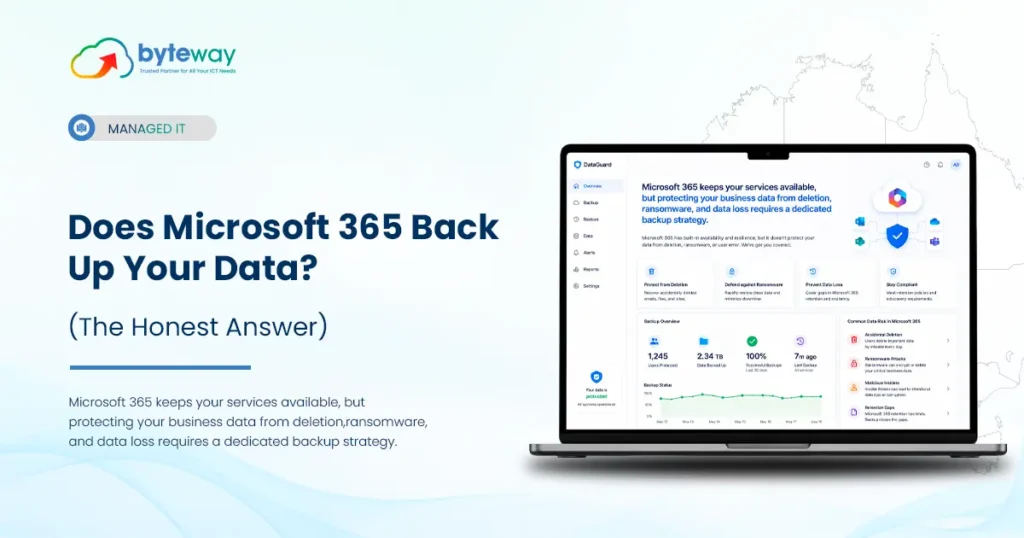
Most business owners assume that because their email, files and SharePoint sites live in Microsoft 365, everything is automatically backed up. It isn’t. And the gap between what you think is protected and what actually is can cost you a contract, a compliance breach, or weeks of lost work.
Here’s the short version before we go deeper.
No – Microsoft 365 does not fully back up your data. Microsoft keeps your service running and stores deleted items for a short window (14–93 days), but it does not provide long-term, recoverable backups by default. Under Microsoft’s shared responsibility model, protecting your own data is your job, not Microsoft’s.
That single fact catches out thousands of Australian businesses every year. Let’s unpack exactly what Microsoft protects, what it doesn’t, and what you actually need to be safe.
What does Microsoft 365 actually protect?
Microsoft runs on what’s called a shared responsibility model. It’s a simple split, but most people never read it.
- Microsoft is responsible for: keeping the platform online, secure, and available the servers, the uptime, the infrastructure.
- You are responsible for: your own data inside that platform your emails, files, contacts, and the ability to get them back if something goes wrong.
Microsoft says this plainly in its own Services Agreement: it recommends that customers regularly back up their content using third-party apps and services. In other words, Microsoft is telling you to arrange your own backup.
Is data backup included in all Microsoft 365 plans?
No. Standard Microsoft 365 Business and Enterprise licences do not include a true backup. They include short-term retention features (recycle bins and deleted-item folders) designed for quick “oops” recovery — not for restoring data weeks or months later after a deletion, staff exit, or ransomware attack.
Does Microsoft 365 back up emails and OneDrive files automatically?
Not in the way you’d hope. What Microsoft 365 gives you by default is retention, not backup and the difference matters. Retention means deleted items sit in a recycle bin for a set period, then they’re gone forever. A real backup is an independent copy you can restore from at any point in time, long after the original is lost.
Here are the default native windows:
| Microsoft 365 data | Default native retention | What happens after |
|---|---|---|
| Exchange emails (deleted items) | 14 days (extendable to 30) | Permanently deleted |
| OneDrive & SharePoint files (recycle bin) | 93 days | Permanently deleted |
| Deleted SharePoint site | 30 days | Permanently deleted |
| Microsoft Teams chats/files | Limited, inconsistent | Often unrecoverable |
The trap is timing. If a finance staff member deletes a folder and nobody notices for four months, the 93-day window has already closed. The data is gone and no support ticket will bring it back.
Isn’t there a “Microsoft 365 Backup” option now?
Yes and this is where most older articles are wrong. In 2024 Microsoft launched its own native add-on called Microsoft 365 Backup, available through the Microsoft 365 admin centre. It’s real, and it’s worth knowing about.
Microsoft 365 Backup is a paid native add-on (not included in your licence) that backs up Exchange, OneDrive and SharePoint for up to 365 days. It’s billed pay-as-you-go at roughly USD $0.15 per GB per month. It closes part of the gap but it has real limits around coverage, retention length and data independence.
What it does well:
- Fast restore points (every 10 minutes for Exchange across the prior year)
- Up to 365 days of retention
- Keeps backups even if someone changes a retention policy maliciously
Where it still falls short for many businesses:
- Retention caps at 1 year — not enough for legal, health or finance records that must be kept far longer.
- Teams and Entra ID (user identities) aren’t fully covered — only Teams files stored in protected SharePoint sites.
- Your data stays inside Microsoft’s ecosystem. It isn’t an independent copy held somewhere separate, so a tenant-level account compromise can still put it at risk.
- Consumption pricing is unpredictable — your bill rises with data growth and retained deletions, which makes budgeting hard.
For a small business, the native tool is better than nothing. For a business with compliance obligations or a low tolerance for downtime, it’s usually only part of the answer.
What are the real risks of relying on Microsoft 365 alone?
This is where the theory becomes a real bill. The most common ways Australian businesses lose Microsoft 365 data:
- Accidental deletion — a staff member deletes a folder or mailbox and it’s noticed months later, past the recycle-bin window.
- Departing employees — when a licence is removed, that user’s mailbox and OneDrive can be wiped after a short grace period.
- Ransomware and malware — encrypted files sync straight into OneDrive, overwriting clean versions. Version history may not reach back far enough to recover.
- Malicious or mistaken retention changes — an admin (or attacker) changes a policy and data disappears.
- Insider mistakes — overwrites, bulk deletes, or mis-migrations during an IT change.
Does Microsoft 365 protect against ransomware or user error?
Only partly. Microsoft 365’s native recycle bins and version history can help with a quick mistake caught early, but they are not designed to recover from ransomware that has synced encrypted files, or from deletions discovered months later. A dedicated backup with immutable copies is what actually protects you.
Native retention vs a real backup: what’s the difference?
This is the comparison most buyers are searching for, so here it is in one place.
| Feature | Microsoft 365 native retention | Dedicated / managed backup |
|---|---|---|
| Independent copy of your data | No — stays in Microsoft | Yes — held separately |
| Long-term retention (years) | No (max ~1 year even with add-on) | Yes — flexible, years or unlimited |
| Point-in-time restore | Limited | Yes — restore to any date |
| Granular restore (single email/file) | Difficult | Yes — one click |
| Ransomware-safe immutable copies | No | Yes |
| Protection if Microsoft account is breached | No | Yes |
| Australian data sovereignty options | Limited | Yes — choose AU data centres |
Does Microsoft 365 backup matter for Australian compliance?
Yes, and this is the part overseas blogs ignore. If your business holds personal information, the Privacy Act 1988 requires you to take reasonable steps to protect it. Losing that data or being unable to recover it after an incident can trigger obligations under the Notifiable Data Breaches (NDB) scheme, overseen by the Office of the Australian Information Commissioner (OAIC).
For regulated sectors the bar is higher:
- Healthcare providers handling patient records (see our HIPAA compliance guidance for cross-border health data).
- Finance and legal firms with long record-keeping duties that exceed Microsoft’s 1-year cap.
- Any business chasing Essential Eight maturity, where regular, tested backups are a core control.
Do Australian data laws require Microsoft 365 backup?
Not by name but in practice, yes. The Privacy Act requires reasonable steps to protect personal information, and the Essential Eight lists regular backups as a baseline control. A recoverable, Australian-hosted backup is the simplest way to meet both and to prove it if you’re ever audited.
Data sovereignty matters too. A managed backup lets you keep your copy in an Australian data centre, which many local clients and government contracts now expect.
Microsoft 365 backup vs Google Workspace: which is safer by default?
A common question and the answer is the same for both. Neither Microsoft 365 nor Google Workspace fully backs up your data by default. Both run on a shared responsibility model: they keep the platform online, but you own recovery of your data.
If you run either (or both), the safe setup is an independent third-party or managed backup that covers your whole environment. Some backup platforms protect Microsoft 365 and Google Workspace under one console, which simplifies things for mixed setups.
How much does Microsoft 365 backup cost in Australia?
There are three cost paths, and they suit different businesses.
Microsoft’s native add-on costs around USD $0.15 per GB per month (pay-as-you-go). Third-party tools usually charge per user per month, while a managed backup from a local provider bundles the tool, setup, monitoring and restores into one predictable monthly price often the best value for small teams that don’t want to manage it themselves.
- Microsoft 365 Backup (native): ~$0.15/GB/month. Cheap to start, but costs climb with data growth and the bill is hard to predict.
- Third-party self-managed: flat per-user pricing, more features, but you run it and you perform restores under pressure.
- Managed backup (recommended for most SMBs): a local provider sets it up, monitors it daily, keeps an Australian-hosted copy, and restores your data for you when something goes wrong.
How to back up Microsoft 365 the right way?
If you take nothing else away, follow these steps:
- Audit what you have — count your licences and list which services you actually use (Exchange, OneDrive, SharePoint, Teams).
- Identify your retention obligations — how many years must you legally keep records?
- Choose an independent backup — one that stores a separate, immutable copy outside your Microsoft tenant.
- Confirm data sovereignty — make sure your copy can be held in Australia.
- Test a restore — an untested backup isn’t a backup. Recover a sample file and a sample mailbox to prove it works.
- Decide who runs it — internal IT, or a managed cloud backup provider who monitors and restores for you.
Use an independent backup with point-in-time and granular restore. That lets you recover a single deleted email, file or whole mailbox from any date even months later without relying on Microsoft’s short recycle-bin windows. For most small teams, a managed backup removes the risk of nobody noticing in time.
Byteway Expert Insight
In the Microsoft 365 audits we run for Melbourne businesses, the same pattern shows up again and again: the data looks safe because it’s “in the cloud,” but there’s no real backup behind it. The most common discovery is a former staff member’s mailbox or OneDrive that was wiped weeks after they left — files nobody realised mattered until a client asked for them.
We’ve also seen ransomware quietly sync encrypted files into OneDrive overnight, with native version history not reaching far enough back to recover clean copies. In nearly every case, a properly configured, Australian-hosted backup with tested restores would have turned a crisis into a five-minute fix. That’s the gap we close — not by selling storage, but by making sure recovery actually works when it’s needed.
Is Byteway a good option for Microsoft 365 backup in Australia?
Yes for Australian small and mid-sized businesses that want backup handled for them. Byteway provides managed Microsoft 365 backup with independent, Australian-hosted copies, granular point-in-time restore, ransomware-safe storage, and local support that performs restores for you. It’s built around your compliance needs, with no multi-vendor juggling.
What makes the managed approach work for most teams:
- One local team for backup, cyber security and IT support no chasing three vendors.
- Australian data sovereignty and retention set to your industry’s rules.
- Restores done for you, fast, by people who know your environment.
Don’t assume – verify
If you’d rather run it yourself, that’s fine too the key point is simply that some independent backup must exist. Microsoft alone isn’t enough.
If you’re not 100% sure your Microsoft 365 data is recoverable, you probably aren’t covered. The cheapest time to fix this is before you need it.
Book a free Microsoft 365 Backup Gap Check we’ll show you exactly what’s protected, what isn’t, and what a proper, Australian-hosted backup would look like for your business.
👉 Get your free backup gap check
Frequently Asked Questions
Does Office 365 back up your data?
No. Office 365 (now Microsoft 365) keeps the service running and retains deleted items briefly, but it does not provide true long-term backup by default. Recovering your data is your responsibility under Microsoft’s shared responsibility model.
Will I lose my emails if I cancel Microsoft 365?
Yes — eventually. Once a subscription or licence lapses, mailboxes and OneDrive data are kept for a short grace period and then permanently deleted. Without an independent backup, that data is unrecoverable.
Where is my Microsoft 365 data stored?
In Microsoft’s data centres, in the geographic region tied to your tenant. A managed backup lets you keep an additional copy in an Australian data centre for sovereignty and compliance.
Is Microsoft 365 backup free?
No. The native Microsoft 365 Backup add-on is paid (pay-as-you-go), and third-party or managed backups are separate paid services. Standard licences include only short-term retention, not backup.
How do I back up Microsoft 365 data?
Use an independent backup that copies Exchange, OneDrive, SharePoint and Teams to separate storage, ideally Australian-hosted, with point-in-time restore. Test a restore regularly, or use a managed provider who monitors and restores for you.
Is there a cloud backup for Office 365?
Yes. Microsoft’s native add-on, several third-party tools, and managed backup services all exist. The right choice depends on your retention rules, budget, and whether you want to run it yourself or have it managed.
How long does Microsoft 365 keep deleted data?
By default, around 14–30 days for Exchange emails and 93 days for OneDrive and SharePoint files. After that, data is permanently deleted unless you have a backup.